

Today’s mission: how to generate sitemap in Yoast SEO without becoming a monk or throwing the laptop out of the window.
So, I sat down, cracked my fingers, and decided to act like a genius who knows tech—because… why not?
A sitemap basically tells Google, “Hey buddy, here are all my pages. Please don’t get lost.”
And Yoast SEO becomes the cool assistant who creates that sitemap with one click.
So, here’s how I create a sitemap in Yoast SEO, how I enable sitemap in Yoast SEO, and how I activate XML sitemap in Yoast without drama.
Well, Here Is the Step By Step Guide For You To Generate The Sitemap in Yoast
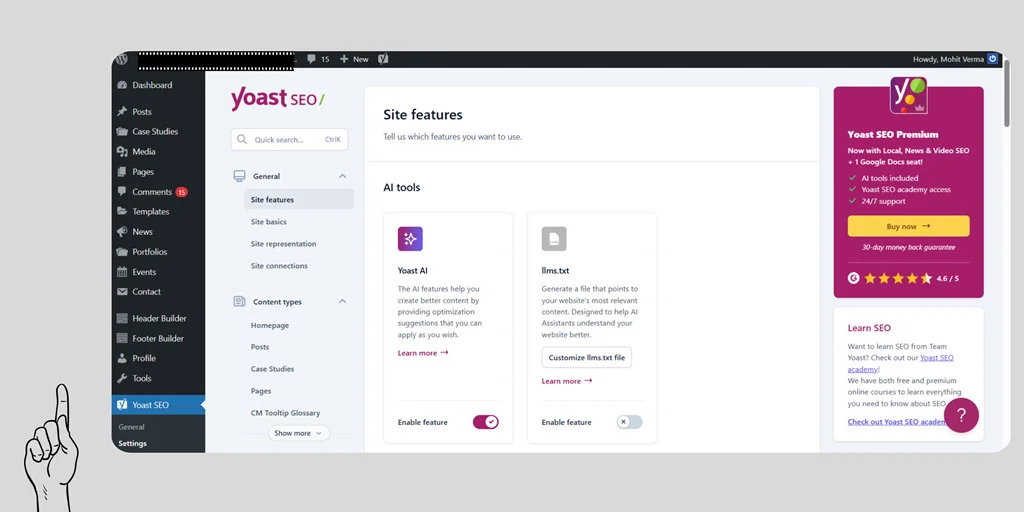
Step 1: I Open My WordPress Dashboard Like a Hacker
Straight into WordPress → Plugins → Yoast SEO settings.
I pretend like I’m entering NASA, but no one needs to know the truth.
Step 2: I Find the “General” Tab
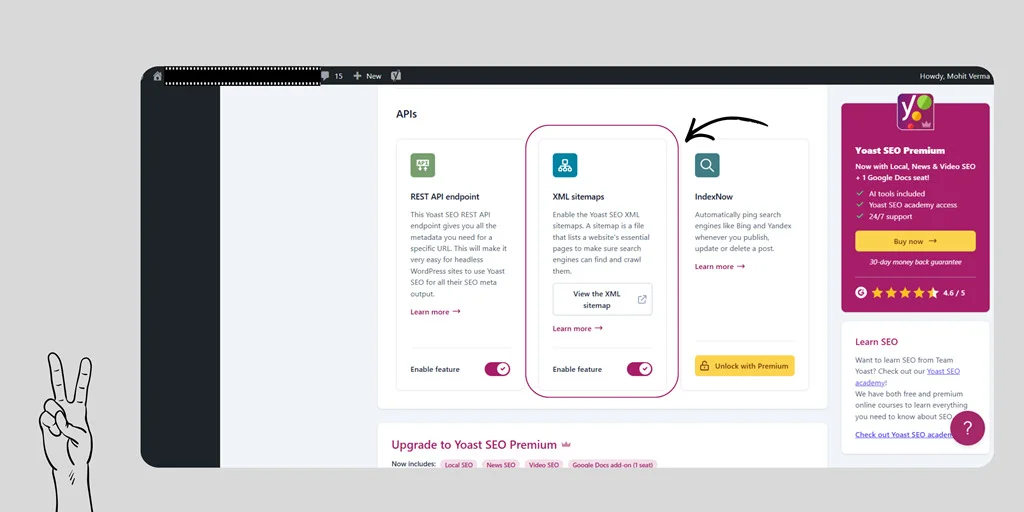
Inside Yoast, I go to General → Features. This is where the magic lives.
Here I see an option called XML sitemaps. My brain whispers, “This is it. Don’t mess it up.”
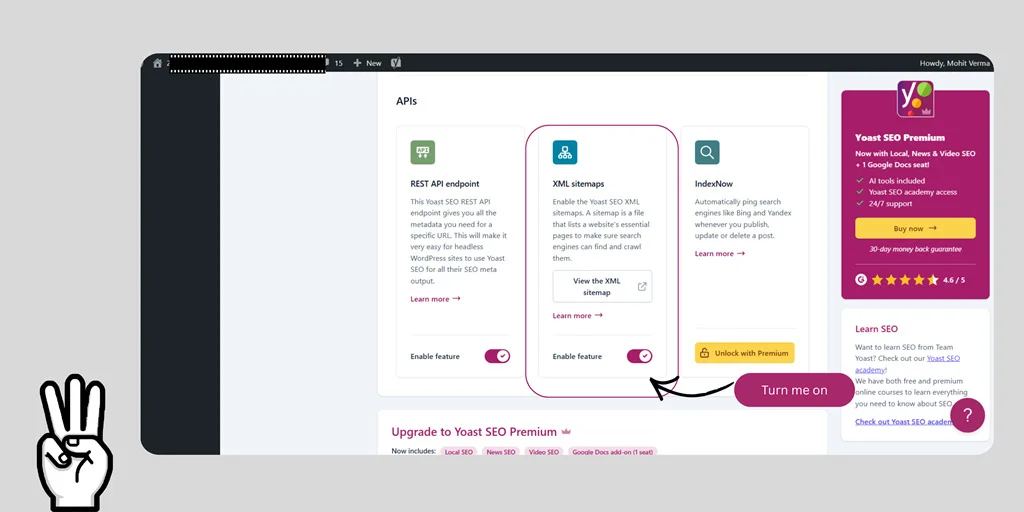
Step 3: I Turn on the XML Sitemap
To generate XML sitemap in Yoast, I simply toggle the button ON.
Boom. My sitemap is now alive—like a Pokémon I just unlocked. Technically, this is how I enable sitemap in Yoast SEO and how I activate XML sitemap in Yoast.
No rocket science. No tears. Only victory.
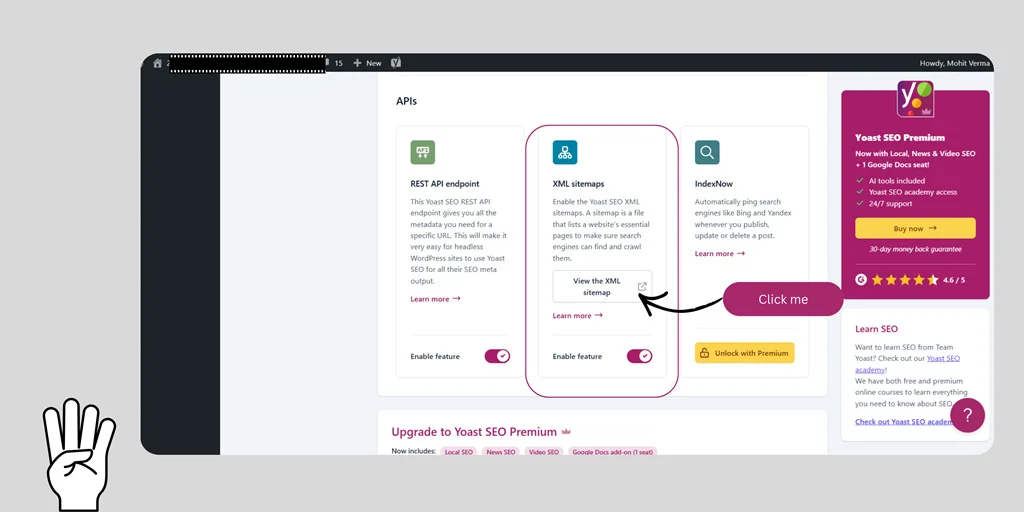
Step 4: I Click the Little “Link” Icon
Right next to the XML sitemap toggle, Yoast gives a tiny (arrow sign) button.
I click it with pride.
It shows a link → View the XML Sitemap.
This button is literally how I get XML sitemap from Yoast SEO and how I find sitemap in Yoast SEO.
The link usually looks like this: https://mohitsseotraining.com/sitemap_index.xml
I copy it like it’s treasure.
Step 5: I Open the Sitemap Link
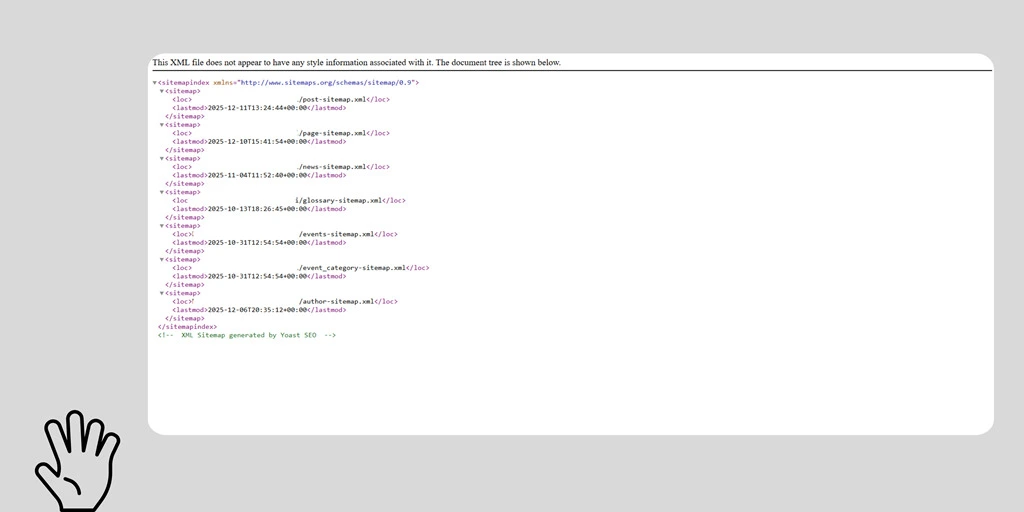
Once I open that link, I see a clean list of all my sitemaps. This is how I check the sitemap created by Yoast and how I make sitemap using Yoast SEO. At this point, I feel like an SEO ninja.
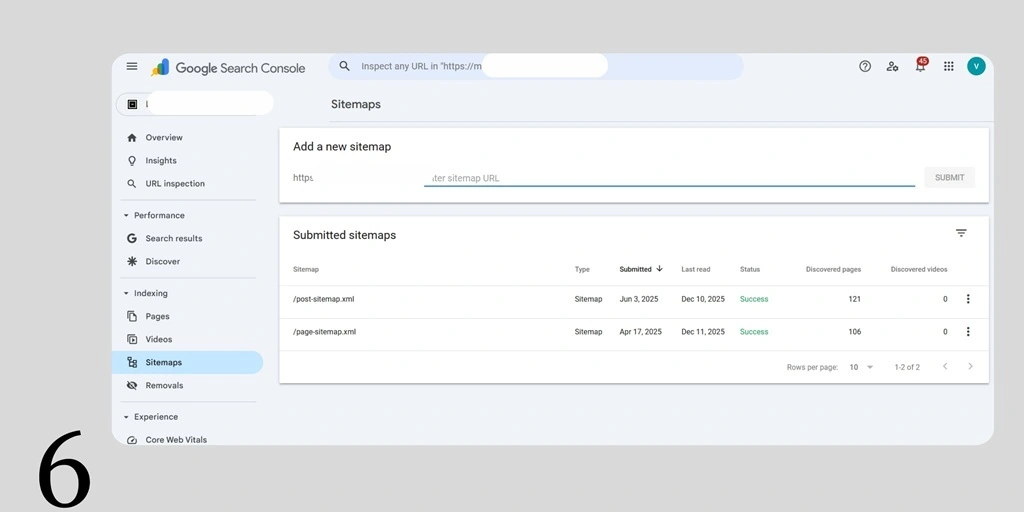
Step 6: I Submit It to Google Search Console
I paste the same sitemap link into Search Console. Google smiles. I smile harder.
Now my website has officially introduced itself to Google like: “Hi Google, meet my pages. Please rank them. Thank you.”
Extra Useful Things I Learned While Acting Smart
How I Create Sitemap in Yoast SEO
Just toggle ON the XML sitemap. That’s it. Even my 5th-grade cousin could do it.
Yoast Sitemap Not Showing?
Sometimes my sitemap goes on a vacation.
So I:
- Clear cache
- Refresh permalinks
- Disable + enable Yoast features
Boom. Sitemap returns.
Second Method Of Yoast Sitemap Setup
Open Yoast → Search settings → Turn on XML sitemap → Copy link → Done.
Someone print this on a T-shirt.
FAQs
Does Yoast submit sitemaps to Google?
No, Yoast does not submit my sitemap to Google automatically.
Yoast only creates the sitemap for me. I must manually submit the sitemap URL in Google Search Console. Yoast cooks the food but I still have to serve it.
How do I update my sitemap in Yoast?
My sitemap updates automatically whenever I change or add anything. It quietly refreshes the sitemap on its own. There is no “Update Sitemap” button. Yoast handles the homework for me.
Where do I find my sitemap in Yoast SEO?
In Yoast → General → Features → XML Sitemaps → (i) icon → View sitemap.
Yoast hides the sitemap link behind the info icon. I click it and boom — there’s my sitemap link shining like treasure.
What is the correct sitemap URL created by Yoast?
Usually it’s https://mywebsite.com/sitemap_index.xml. Yoast creates a main “index” sitemap, which contains smaller sitemaps. This is the link Google needs.
How do I fix Yoast sitemap not working?
I fix it by clearing cache, refreshing permalinks, or toggling the sitemap OFF → ON. Sometimes the sitemap acts stubborn. A quick refresh or a toggle usually solves the problem instantly.
Final Thoughts
So that’s how I generate sitemap in Yoast SEO, how I create sitemap in Yoast SEO, and basically how I survive as a WordPress warrior.
The entire process takes 30 seconds, which is also the exact amount of time I take to overthink everything in life.
But hey, task completed.
If Google had a heart, it would send me a thank-you message.


