Most people don’t have a Google problem, they have a search problem. I have seen this again and again while working in SEO, where people blame Google but never fix how they search. Once you understand Google Search Tricks, you stop guessing and start controlling what results you see.
What are Google Search Tricks and why do most people fail at searching?
Google Search Tricks are structured ways to control how Google interprets your query using operators, filters, and intent-based inputs. Instead of typing random keywords, I guide Google with clarity so it delivers precise results that match what I actually need.
Most people fail because they search broadly and expect Google to do all the work. I approach search like a strategy where I define intent first, then refine the query, and finally use operators to get exactly what I want in fewer searches.
Google Search Tricks help you move from random searching to structured, intent-based searching where you control the output instead of relying on guesswork.
How can I instantly improve my search using basic Google Search Tricks?
“Exact Match”
When I use quotes, I tell Google to show results that match my query exactly without variation. This is useful when I want precise answers instead of loosely related content that wastes time.
For example, when I search “SEO checklist for beginners”, I get pages that directly match that phrase instead of generic SEO articles. This improves accuracy and reduces scrolling effort significantly.
– Exclude Operator
The minus operator helps me remove unwanted results from my search query. It is especially useful when Google shows too many irrelevant or distracting results.
For example, when I search SEO course -free, I remove all free course results and only see paid options. This helps me focus on high-intent content without unnecessary clutter.
OR Operator
I use OR when I want to explore multiple variations of a query in a single search. This is useful during research when I am not sure which exact keyword will give the best results.
For example, SEO course India OR SEO training India shows a mix of both types of results, giving me a broader perspective without running multiple searches.
site: Operator
The site operator helps me search within a specific website or domain. This is useful when I trust a platform and want to find content only from that source.
For example, SEO tips site:linkedin.com gives me results only from LinkedIn, which often includes practical insights and real-world experiences.
intitle: Operator
The intitle operator ensures that my keyword appears in the title of the page. This increases the chances that the content is focused on my topic rather than just mentioning it casually.
For example, intitle:SEO checklist gives me highly relevant pages where the main focus is on SEO checklists rather than unrelated content.
Basic Google Search Tricks like exact match, minus, OR, site, and intitle help refine results instantly by improving relevance and reducing noise.
How do I use advanced Google search operators like a pro?
filetype: Operator
The filetype operator allows me to search for specific file formats like PDFs, DOCs, or PPTs. This is one of the most powerful google search tricks for pdf when I need structured documents instead of blogs.
For example, SEO audit checklist filetype:pdf gives me downloadable documents that are ready to use. These are often more actionable than blog posts.
related: Operator
The related operator helps me discover websites similar to a specific domain. This is useful when I am doing competitor research or looking for alternatives.
For example, related:ahrefs.com shows tools and platforms similar to Ahrefs, helping me explore more options quickly.
cache: Operator
The cache operator shows me the last saved version of a webpage. This is useful when a page is down or has been updated and I want to see its previous version.
For example, cache:example.com lets me access the stored version of that page even if it is temporarily unavailable.
allintitle: Operator
The allintitle operator ensures that all the keywords appear in the title of the page. This increases the relevance of the results significantly.
For example, allintitle:SEO strategy guide gives me pages that are highly focused on SEO strategy instead of loosely related topics.
Advanced operators like filetype, related, cache, and allintitle help you control content format, discover alternatives, and increase result relevance.
How can I find PDFs using Google search tricks for pdf?
filetype:pdf
When I specifically want documents, I use filetype:pdf to filter out all other formats. This helps me directly access structured and downloadable content.
For example, digital marketing notes filetype:pdf gives me ready-to-use study material instead of blog articles. This is extremely useful for quick learning and implementation.
site:.edu + filetype:pdf
I combine filetype with domain filters to increase credibility. This helps me find academic resources that are more reliable and well-structured.
For example, marketing strategy filetype:pdf site:.edu gives me university-level content which is often more detailed and trustworthy.
Using filetype:pdf along with domain filters like site:.edu helps you find high-quality, structured, and credible documents quickly.
What are some secret Google Search Tricks most people don’t know?
around(X)
The around operator helps me find keywords that appear close to each other within content. This improves contextual relevance and ensures better quality results.
For example, SEO AROUND(3) tools shows pages where SEO and tools appear within a close range, making the content more relevant to my query.
Combination Queries
I combine multiple operators to create highly refined searches. This is where most users fail because they use only one operator at a time.
For example, SEO checklist filetype:pdf site:.edu gives me highly targeted academic documents instead of generic results.
vs Queries
I use comparison-based queries to make decisions quickly. This helps me skip research and directly access comparison-focused content.
For example, Ahrefs vs SEMrush gives me detailed comparisons that help in decision-making without extra effort.
Secret Google Search Tricks involve combining operators, using proximity search, and leveraging comparison queries to get highly precise results.
What are fun Google Search Tricks (Easter eggs like askew)?
askew
When I search askew, the screen tilts slightly, creating a playful effect. This is one of the most popular google search tricks like askew.
do a barrel roll
This command rotates the entire page, showing how interactive Google can be beyond traditional search.
google gravity
This trick makes the entire Google interface collapse, creating an interactive experience that is not related to productivity but interesting to explore.
Google Easter eggs like askew and barrel roll are fun interactive features that showcase Google’s creativity but are not meant for practical use.
What is the best Google Search Tricks list for students?
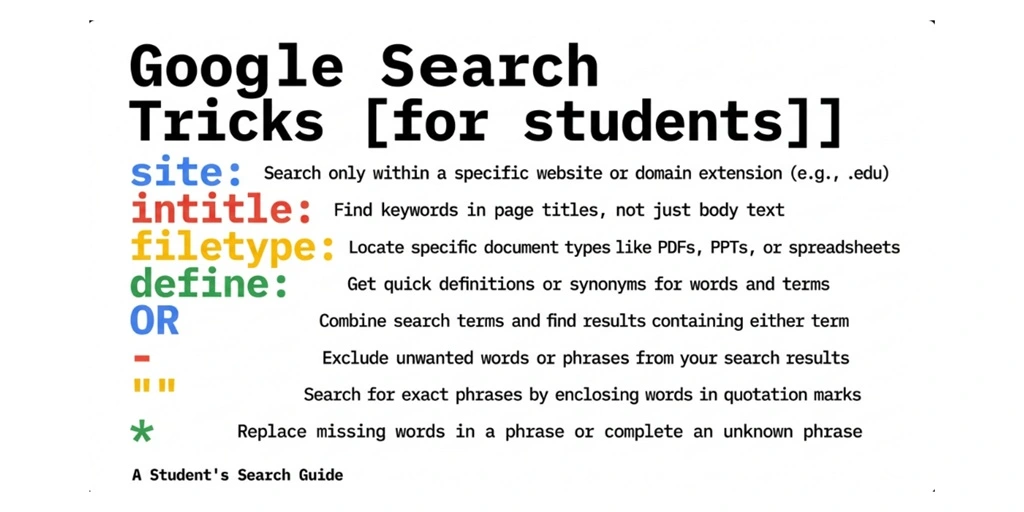
filetype:pdf
Students can use filetype:pdf to directly access notes, assignments, and study material. This removes the need to go through multiple blog articles.
site:.edu
Using site:.edu helps students access content from universities, which is often more reliable and structured for academic use.
define:
The define operator helps students quickly understand terms without opening multiple pages. This is useful for quick revisions and concept clarity.
“Exact Match”
Using quotes ensures that students get results that match their exact query, which helps in understanding specific concepts without distractions.
Students can use Google Search Tricks like filetype, site, define, and exact match to access high-quality academic content quickly and efficiently.
What is the complete Google Search Tricks list (all possible tricks)?
When I talk about mastering Google Search Tricks, I don’t just mean knowing a few operators. I mean understanding the entire ecosystem of how Google interprets queries. Over time, I’ve built my own Google Search Tricks list that helps me get precise, fast, and high-quality results without wasting time scrolling.
Instead of memorizing everything randomly, I look at search tricks from a practical lens. What does this operator do, when should I use it, and what kind of results will I get. That’s exactly how you should approach this as well if you want to actually improve your search efficiency.
Complete Google Search Tricks List
| Search Trick / Operator | Syntax / Example | What It Does | When I Use It | Expected Result |
| Exact Match | “SEO checklist” | Searches exact phrase | When I need precise results | Highly relevant pages with exact phrase |
| Exclude | SEO course -free | Removes unwanted terms | When results are cluttered | Cleaner, filtered results |
| OR Operator | SEO course OR SEO training | Includes multiple variations | During research phase | Broader results with variations |
| Wildcard | best * tools for SEO | Fills missing words | Keyword discovery | Expanded variations |
| site: | SEO tips site:linkedin.com | Searches within a site | Platform-specific research | Results from one domain |
| filetype: | SEO checklist filetype:pdf | Filters by file format | Finding documents | PDFs, docs, PPTs |
| intitle: | intitle:SEO checklist | Keyword in title | Relevance check | Focused content |
| inurl: | inurl:seo-guide | Keyword in URL | Finding niche pages | Targeted URLs |
| allintitle: | allintitle:SEO strategy guide | All keywords in title | High precision search | Highly relevant results |
| allinurl: | allinurl:seo tools free | All keywords in URL | Deep filtering | Specific pages |
| related: | related:ahrefs.com | Finds similar sites | Competitor research | Alternative platforms |
| cache: | cache:example.com | Shows cached page | When page is down | Stored version of page |
| define: | define:SEO | Shows definition | Quick learning | Instant definitions |
| around(X) | SEO AROUND(3) tools | Finds nearby keywords | Context search | Better contextual results |
| before: | SEO updates before:2023 | Filters older content | Historical research | Old content only |
| after: | SEO trends after:2024 | Filters recent content | Latest updates | Fresh content |
| “..” Range | SEO tools $10..$50 | Searches range | Price comparisons | Results in range |
| stocks: | stocks:GOOG | Stock info | Financial tracking | Stock data |
| weather | weather Bangalore | Weather info | Quick check | Live weather |
| calculator | 50*20+10 | Calculates instantly | Quick math | Instant result |
| map search | restaurants near me | Local search | Nearby places | Local listings |
| “vs” Query | Ahrefs vs SEMrush | Comparison search | Decision making | Comparison blogs |
| Best + Year | best SEO tools 2026 | Fresh lists | Updated research | Latest rankings |
| site:.edu | SEO notes site:.edu | Academic filter | Student research | University content |
| site:.gov | policy filetype:pdf site:.gov | Govt sources | Trust-based research | Official docs |
| Combination | SEO checklist filetype:pdf site:.edu | Multi-filter search | Advanced research | Highly refined results |
| Reverse Image | Upload image in Google Images | Image-based search | Visual lookup | Similar images |
| Google Lens | Scan object/photo | Real-world search | Product/people search | Visual matches |
| askew | search: askew | Tilts screen | Fun interaction | Visual effect |
| do a barrel roll | search: do a barrel roll | Rotates screen | Fun interaction | Animation |
| google gravity | search: google gravity | Breaks UI | Fun interaction | Interactive UI |
If you notice closely, the real power is not in using one trick at a time. I combine these based on intent. That’s where most people fail because they treat Google as a simple tool instead of a system they can control.
The complete Google Search Tricks list includes operators for filtering, formatting, intent matching, research, utilities, and visual search, all of which help you control and predict search results instead of relying on guesswork.
Conclusion
I don’t search randomly anymore because I know how Google works. I guide it with clear intent, structured queries, and the right operators to get exactly what I need.
If you start using these Google Search Tricks consistently, you will reduce search time, improve accuracy, and make better decisions faster. The goal is not to search more, but to search smarter.
FAQs
What are the three ways to search quickly?
The three ways to search quickly are using exact match with quotes, applying filters like site or filetype, and excluding unwanted terms using minus. These methods help reduce noise and improve relevance instantly.
When I search quickly, I simplify my query instead of making it longer. For example, instead of typing a full question, I type SEO checklist filetype:pdf and get direct results without wasting time.
What are the suggested tips for using a search engine?
The best tips include being specific with keywords, using search operators, and refining your search step by step. This approach ensures that you guide the search engine instead of relying on it blindly.
I usually start broad and then refine my query using filters and operators. This layered approach helps me reach highly accurate results without scrolling through irrelevant pages.
What are the various search techniques?
The main search techniques include keyword-based search, operator-based search, filtered search, and intent-based search. Each technique serves a different purpose depending on what you are looking for.
Most users rely only on keywords, but I combine operators and intent. For example, when I want research material, I use filetype:pdf and when I want trusted sources, I use site:.edu to improve result quality.


Mohit Verma
Contributor at Mohit's SEO Training.