

Even in 2026, submitting a sitemap to Google Search Console is still one of the fastest ways to help Google discover, crawl, and index a website correctly. I often see this in real life: I publish a new page, the content is good, internal links are in place, but when I search for it on Google, it simply doesn’t appear.
In most cases, the issue is not quality. The issue is discovery. Google doesn’t yet know that the page exists or doesn’t consider it important enough to crawl quickly. This is exactly why learning how to add sitemap to Google Search Console and how to submit sitemap on Google Search Console is so important.
When I submit a sitemap, I am literally giving Google a ready-made list of all the important URLs on my site. This helps Google crawl faster, understand site structure better, and index new or updated pages more efficiently.
- What Is a Sitemap and Why Should I Add It to Google Search Console?
- Where Can I Find My Sitemap URL Before Submitting It?
- Different Ways To Submit Sitemap in Google Search Console
- How to Add Sitemap URL in Google Search Console Step by Step?
- How Do I Know If Google Has Successfully Processed My Sitemap?
- What Are the Common Errors After Submitting a Sitemap and How Do I Fix Them?
- How to Add Sitemap for a Website That Is Not on WordPress?
- How to Delete Sitemap from Google Search Console?
- Frequently Asked Questions
- How Does Sitemap Submission Impact SEO and Indexing Speed?
- Can I Submit Multiple Sitemaps in Google Search Console?
- Conclusion
What Is a Sitemap and Why Should I Add It to Google Search Console?
A sitemap is a file, usually in XML format, that contains a structured list of all important pages of my website. I treat it like a roadmap for search engines.
Crawling means Google’s bots visit my pages. Indexing means Google stores those pages in its database and makes them eligible to appear in search results. A page can be crawled but not indexed if Google is unsure about its importance or relevance.
When I submit a sitemap, Google uses it as a priority list. It understands which pages matter, when they were last updated, and how the site is structured. If you want a deeper understanding of why sitemaps matter from an SEO perspective, I have explained it in detail in linked blog.
Where Can I Find My Sitemap URL Before Submitting It?
Most websites have their sitemap at one of these locations:
- https://yourdomain.com/sitemap.xml
- https://yourdomain.com/sitemap_index.xml
For WordPress, SEO plugins generate it automatically. Shopify also creates it by default. For custom or static sites, the developer usually places it in the root folder.
Another easy way is to check https://yourdomain.com/robots.txt. Many websites mention the sitemap location there.
If I cannot find it, I follow the exact steps shared in my guide on how to find the sitemap of any website:
Different Ways To Submit Sitemap in Google Search Console
| Method | When to Use | Step-by-Step for Beginners | Helpful Guide |
| XML Sitemap | Most websites | 1) Find /sitemap.xml 2) Open GSC 3) Go to Sitemaps 4) Enter URL 5) Click Submit | Purpose of sitemap: https://mohitsseotraining.com/blog/seo/purpose-of-sitemap-explained/ |
| Sitemap Index | Large sites | 1) Locate sitemap_index.xml 2) Submit in GSC 3) Let Google read all child sitemaps | HTML vs XML sitemap: https://mohitsseotraining.com/blog/seo/difference-between-html-and-xml-sitemap/ |
| Yoast Sitemap | WordPress | 1) Install Yoast 2) Go to SEO → General → Features 3) Open Sitemap 4) Copy URL 5) Submit in GSC | Yoast sitemap guide: https://mohitsseotraining.com/blog/seo/generating-sitemap-in-yoast-plugin/ |
| Manual Sitemap | Static / Custom | 1) Generate XML 2) Upload to root 3) Test URL 4) Submit in GSC | Adding sitemap: https://mohitsseotraining.com/blog/seo/adding-sitemap-in-any-website/ |
| Finding Sitemap | When unsure | 1) Open robots.txt 2) Look for “Sitemap:” 3) Copy URL 4) Submit | Find sitemap: https://mohitsseotraining.com/blog/seo/how-to-find-the-sitemap/ |
| SEO Validation | Performance check | 1) Submit sitemap 2) Monitor indexing 3) Compare coverage | Sitemap SEO benefits: https://mohitsseotraining.com/blog/seo/benefits-of-sitemap-in-seo/ |
How to Add Sitemap URL in Google Search Console Step by Step?
This is the simplest and most important part of how to add sitemap URL in Google Search Console.
1. I log in to Google Search Console.

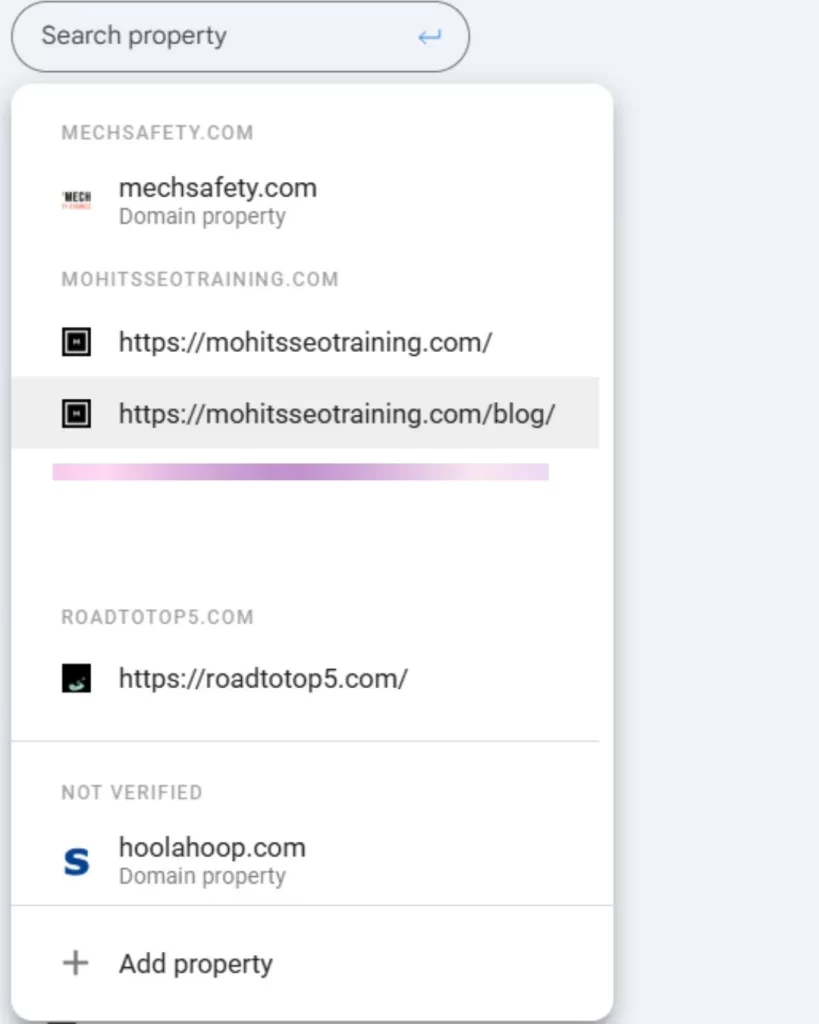
2. I select the correct website property.
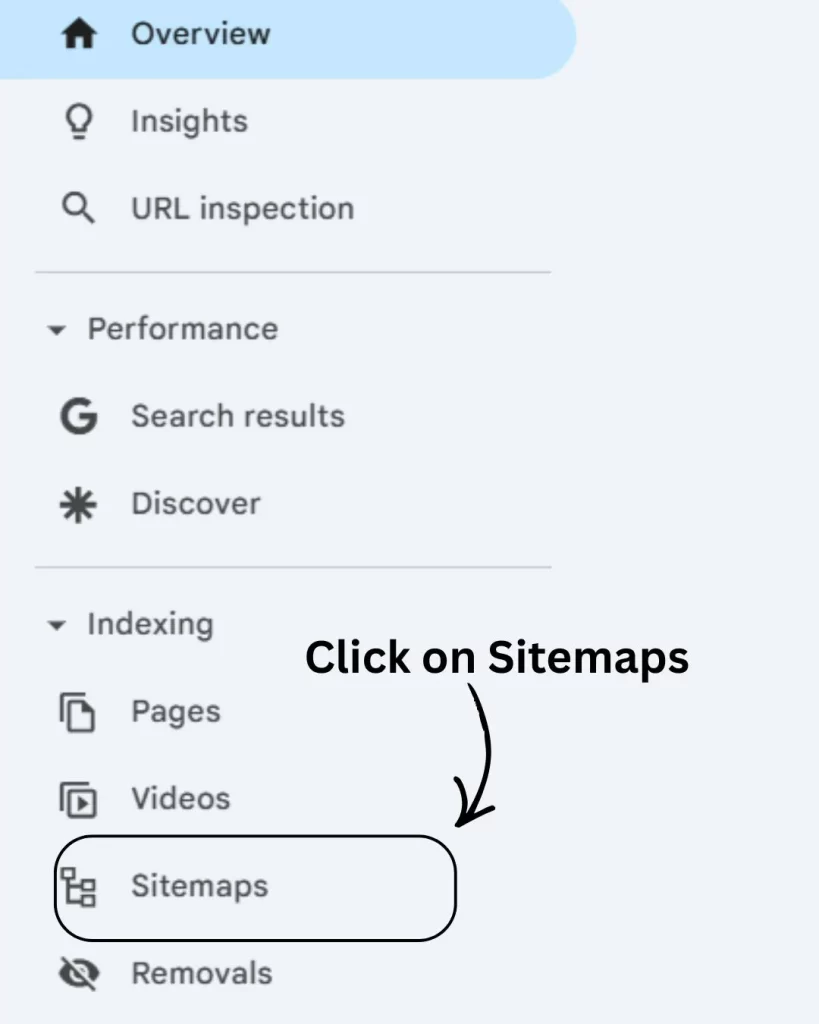
3. From the left menu, I click on Sitemaps.
4. In the “Add a new sitemap” field, I enter the sitemap path like sitemap.xml.
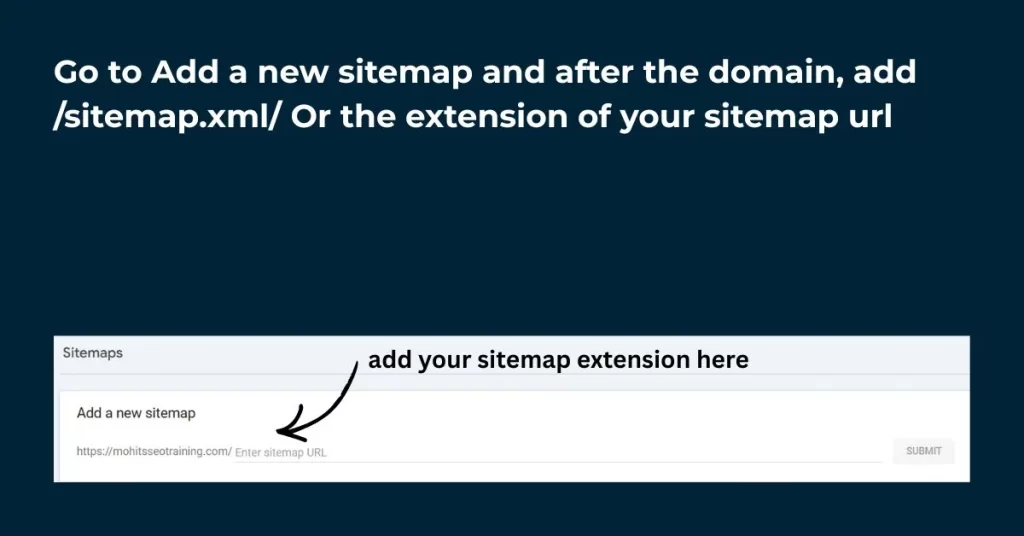
5. I click Submit.
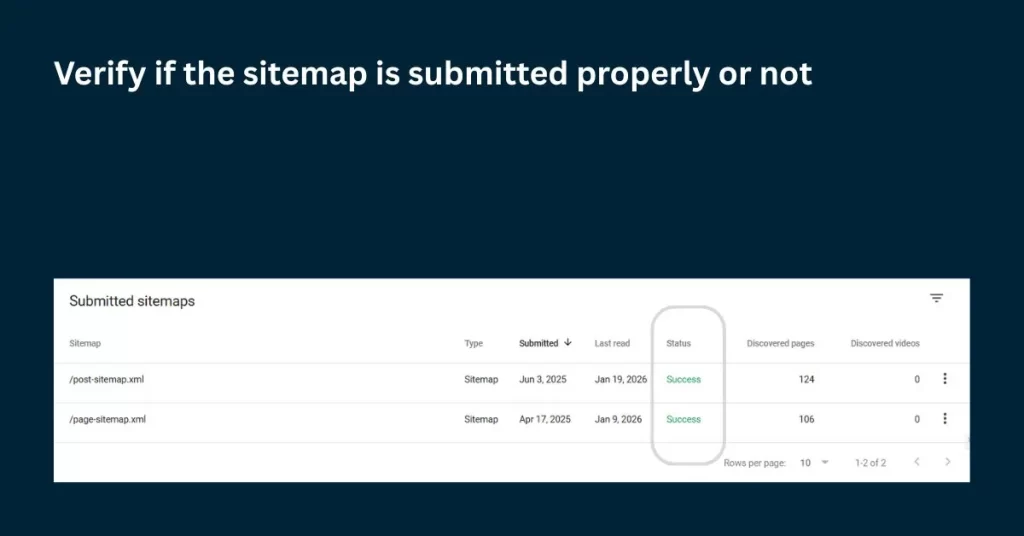
How Do I Know If Google Has Successfully Processed My Sitemap?
Inside the Sitemaps report, I look at:
- Success – Sitemap fetched and processed.
- Couldn’t fetch – Google cannot access the file.
- Has errors – Format or URL issues.
I also compare “Discovered URLs” with “Indexed pages” in the Pages report to understand whether Google is only seeing the URLs or actually indexing them.
What Are the Common Errors After Submitting a Sitemap and How Do I Fix Them?
Common problems I encounter are:
- Sitemap blocked by robots.txt
- Invalid XML format
- Noindex pages inside the sitemap
- Server returning 403 or 404
For example, I once submitted a sitemap where half the URLs were noindex. Google discovered them but refused to index them, and the report clearly showed the mismatch.
How to Add Sitemap for a Website That Is Not on WordPress?
For static sites, I generate an XML sitemap using an online generator or crawler, upload it to the root folder, and submit it in Search Console.
For SaaS platforms, I look for the sitemap URL in the platform’s help documentation.
For custom CMS websites, the developer usually provides a sitemap endpoint, which I then submit in the same way.
How to Delete Sitemap from Google Search Console?
Sometimes I need to remove a sitemap, for example, after a site migration or structure change. To understand how to delete sitemap from Google Search Console, I:
- Go to Sitemaps section.
- Click the submitted sitemap.
- Open the three-dot menu.
- Click Remove sitemap.
Removing only disconnects it from Search Console. Replacing means I remove the old one and submit a new updated sitemap.
Frequently Asked Questions
How Does Sitemap Submission Impact SEO and Indexing Speed?
A sitemap improves crawl efficiency, helps Google discover new content faster, and ensures important pages are not missed. The full SEO benefits are explained in the linked blog.
What Is the Best Sitemap Strategy for New Websites?
For new websites, early discovery is crucial. I generate the sitemap, submit it immediately, and make sure it auto-updates. A complete practical walk through on how to add sitemap is available here.
Can I Submit Multiple Sitemaps in Google Search Console?
Yes. I can submit multiple sitemaps for multilingual websites, subdomains, or large eCommerce stores. Google processes each separately.
Conclusion
Knowing how to add sitemap to Google Search Console, how to submit sitemap on Google Search Console, and even how to delete sitemap from Google Search Console gives me full control over how Google discovers my website.
My final advice is simple: submit your sitemap, check its status monthly, fix errors immediately, and let Google crawl your site with clarity and confidence.